Join Family Freedom#
Introduction#
DoHzel is a powerful mobile security application designed to protect your device from online threats, block ads, and ensure your privacy through encrypted DNS. This guide will help you set up and use the DoHzel app effectively.
App Flow & Setup#
Follow these steps to get started with DoHzel.
Splash Screen#
When you launch the app, you'll be greeted by the DoHzel splash screen.
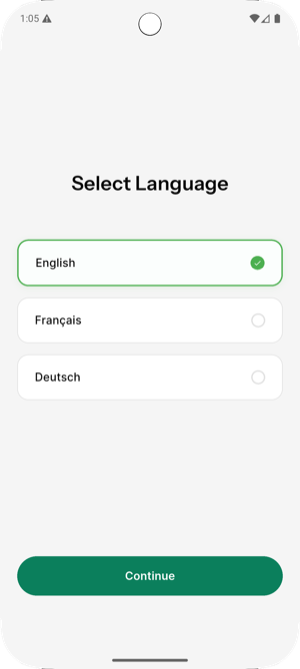
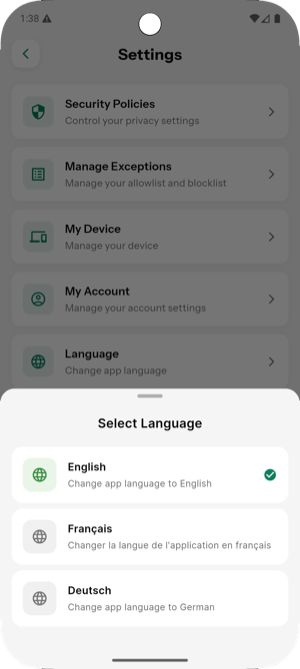
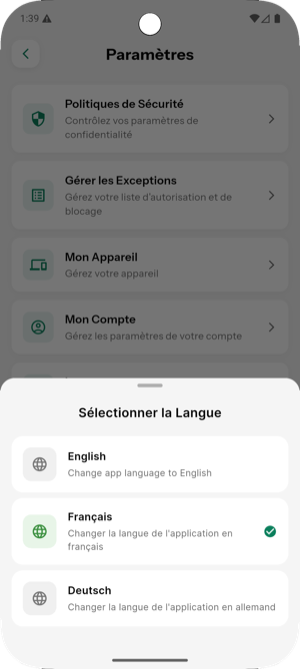
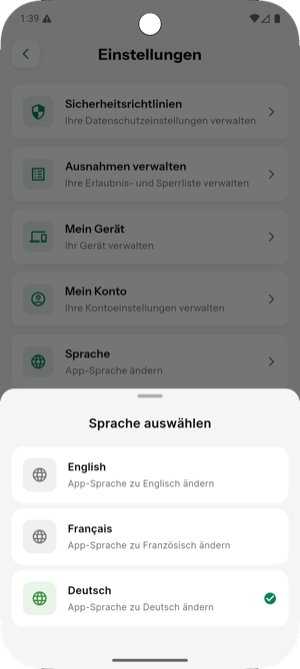
Language Selection#
Select your preferred language to continue.
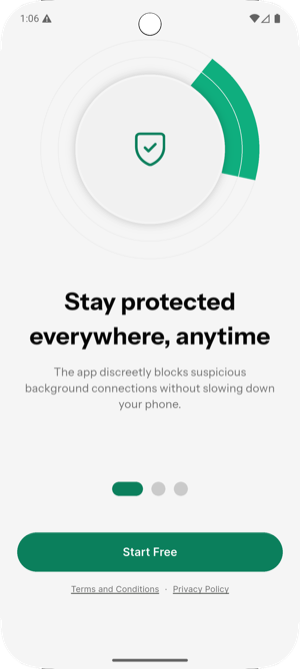
Welcome Screen#
A brief introduction to the app's protection features.
User Type Selection#
Choose the option that best describes you: * Private User: For personal use. * Business User: For enterprise use.
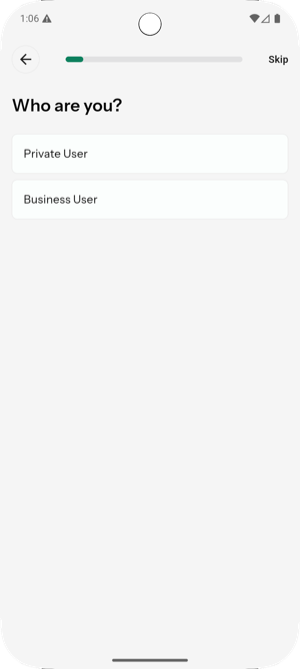
Personalization#
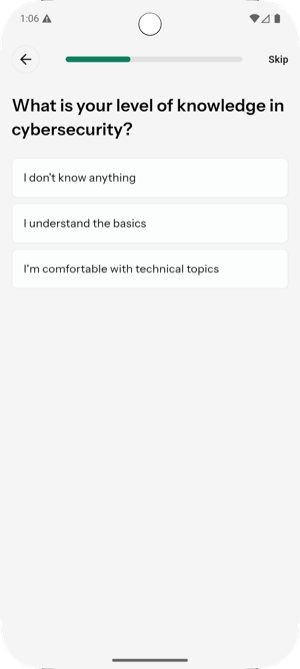
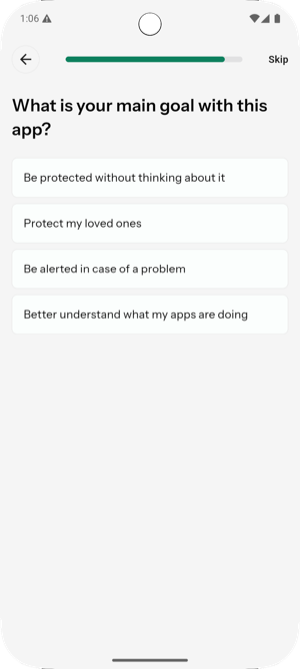
Answer a few questions to help us tailor the experience for you.
-
Knowledge Level: What is your level of knowledge in Cyber?
-
Goals: What is your main goal with this app?
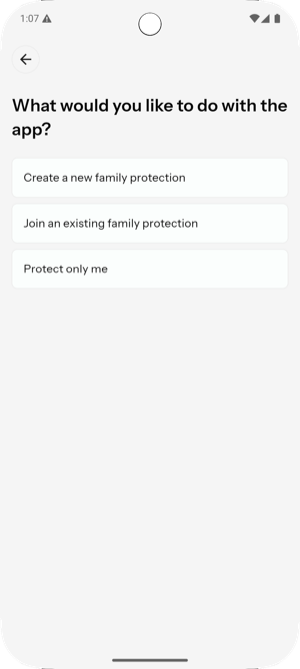
Choose Your Path#
Based on your needs, select one of the following options:
Join Existing Protection#
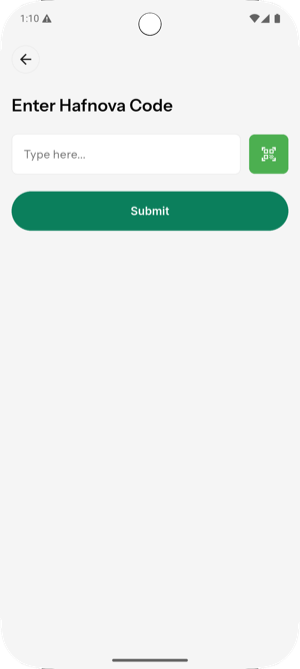
If you selected "Join an existing family protection", you will proceed to enter your invitation code.
-
Enter Code: Type the code provided by your family administrator.
-
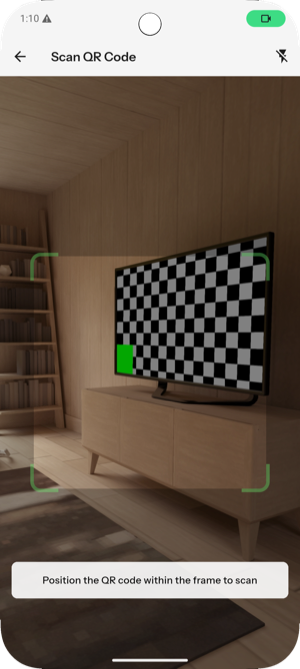
Scan QR Code: Alternatively, tap the QR icon to scan an invitation code directly.
Installation & Activation#
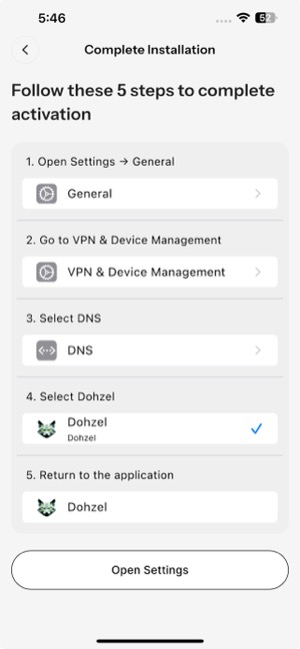
For new setups, follow these steps to enable protection on your device.
-
Instructions: Review the guide provided in the app.
-
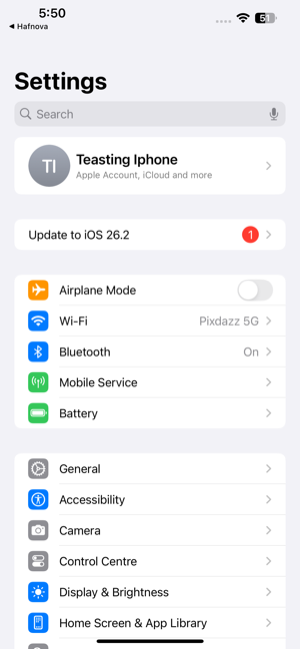
Open Settings: Tap the button to open your device's settings.
-
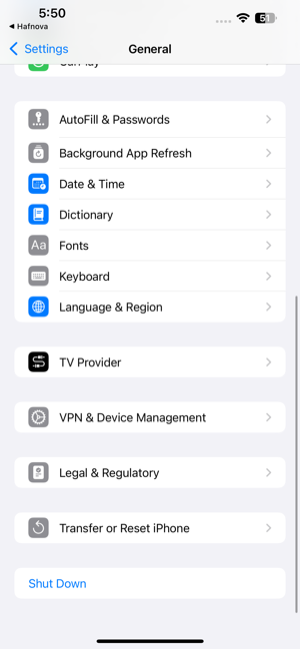
General: Tap on General.
-
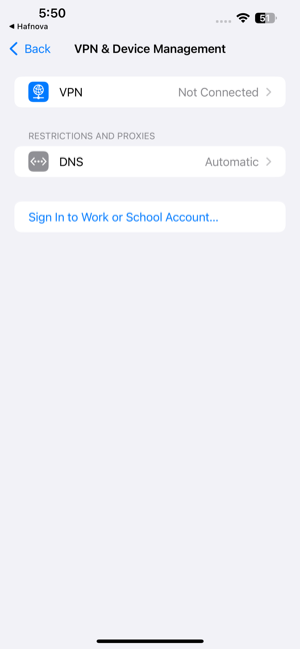
VPN & Device Management: Tap on VPN & Device Management.
-
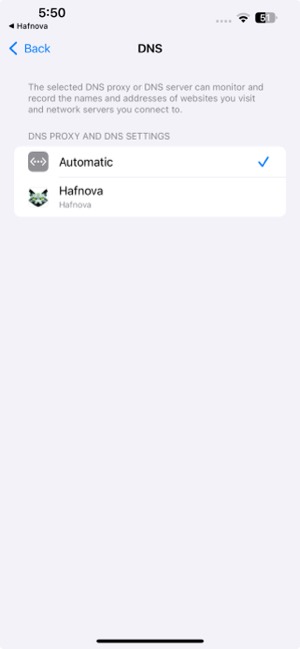
DNS: Tap on DNS.
-
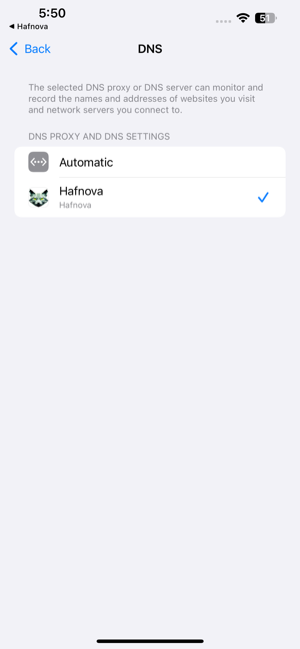
Select Hafnova: Change from Automatic to Hafnova.
-
Return to App: Once configured, return to the DoHzel app to verify connection.
Main Dashboard#
The Dashboard is the central hub of the app (first icon).
Protection Status#
Confirm that protection is ON.
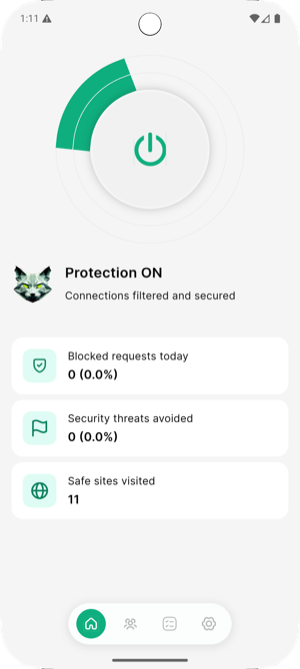
Protection Modes#
You can change the protection mode directly from the Dashboard by tapping the top button.
Select Mode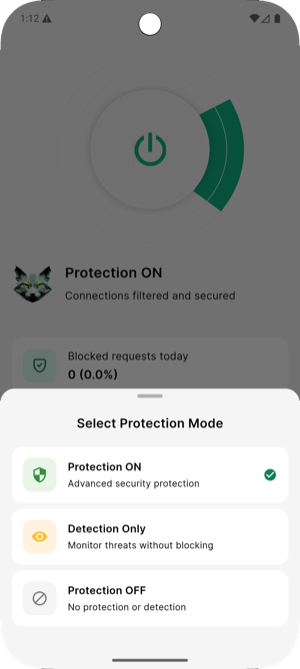 |
Protection ON |
Select Detection Only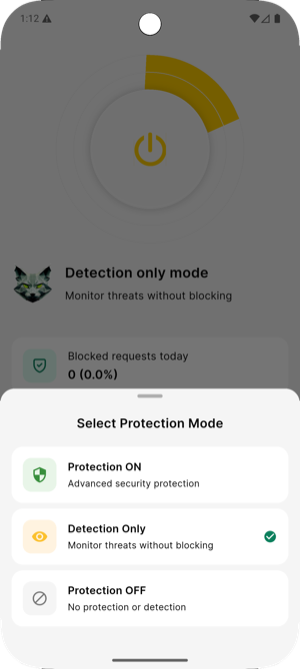 |
Detection Only Mode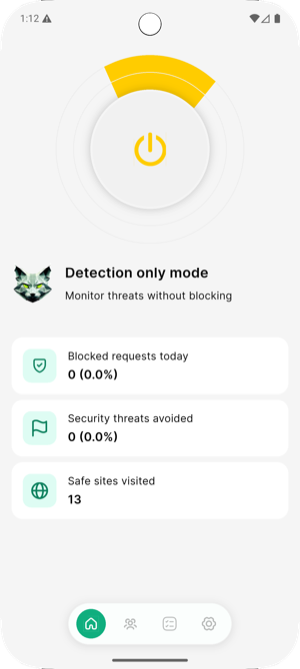 |
Select Protection OFF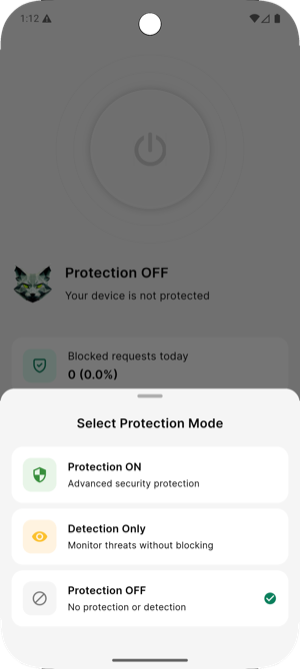 |
Protection OFF Mode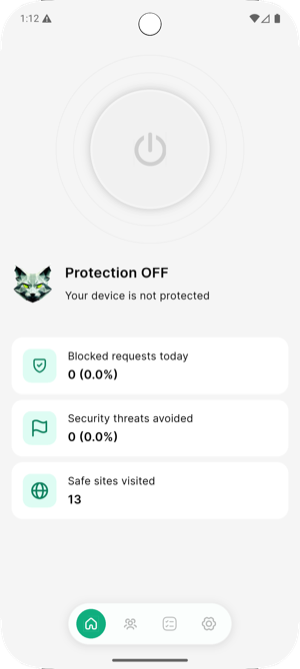 |
The top button on the dashboard will always reflect your currently selected mode.
Blocked Requests Analysis#
By clicking on the Blocked requests today card on the Dashboard, you can view detailed traffic analysis. The default view shows data for the last 24 hours. You can filter this data by selecting different time periods.
24 Hours (Default)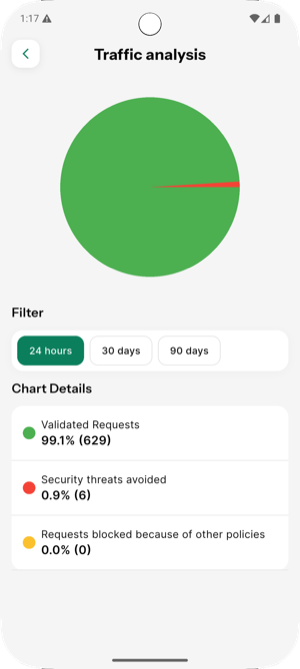 |
30 Days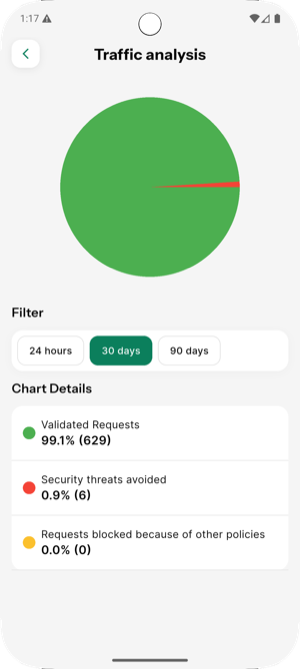 |
90 Days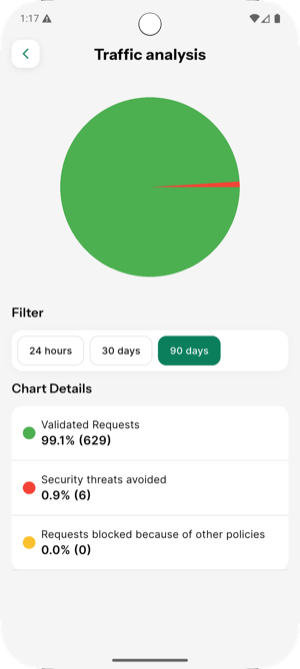 |
Security Threats Analysis#
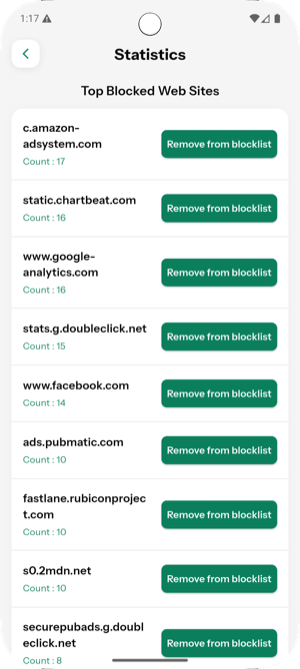
To view details about avoided security threats, click on the Security threats avoided card on the Dashboard.
Family Management#
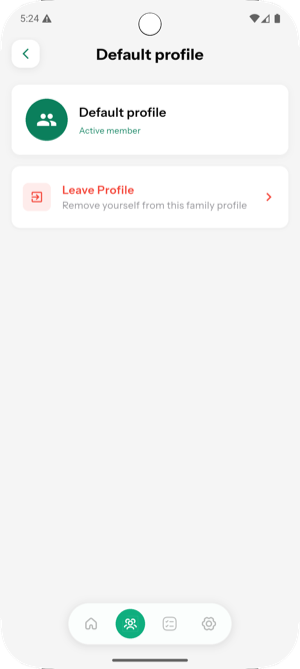
Tap the Family icon (second icon) on the bottom navigation bar to view your family joined.
Activity Logs#
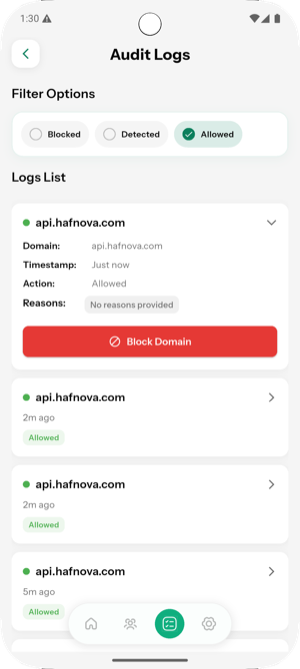
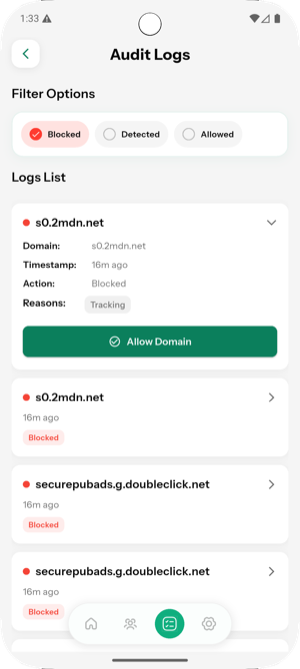
Tap the Logs icon (third icon) on the bottom navigation bar to view your network activity history. You can filter logs by Allowed, Detected, or Blocked.
Allowed Logs (Default)#
Shows domains that were allowed through.
- List View:
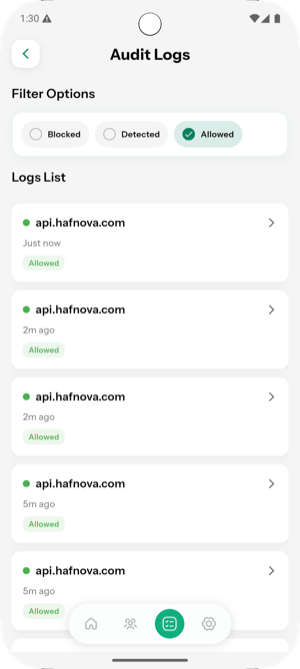
- Item Details: Click on an item to see details. You can Block the domain from here.
Detected Logs#
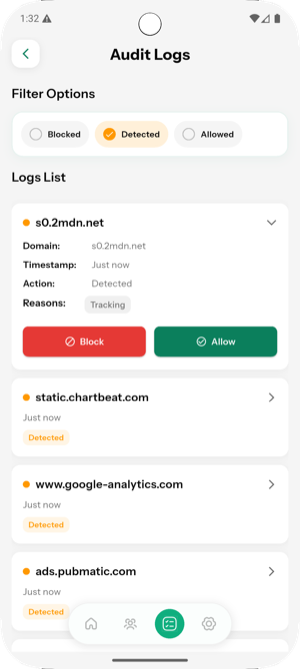
Shows potential threats that were detected (in Detection Only mode).
- List View:
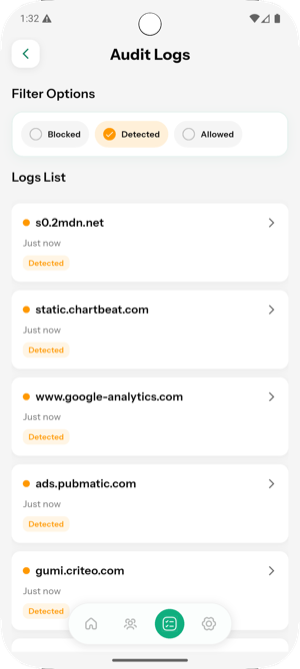
- Item Details: Click on an item to see details. You can choose to Allow or Block the domain.
Blocked Logs#
Shows domains that were blocked by DoHzel.
- List View:
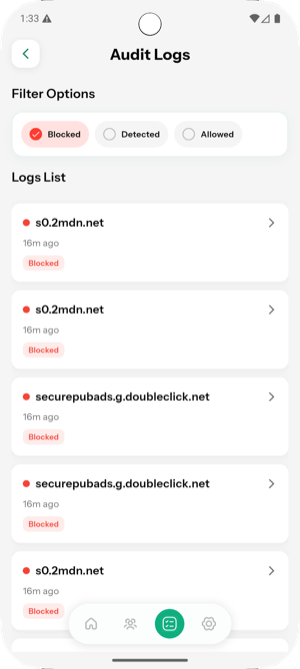
- Item Details: Click on an item to see details. You can Allow the domain from here.
Settings#
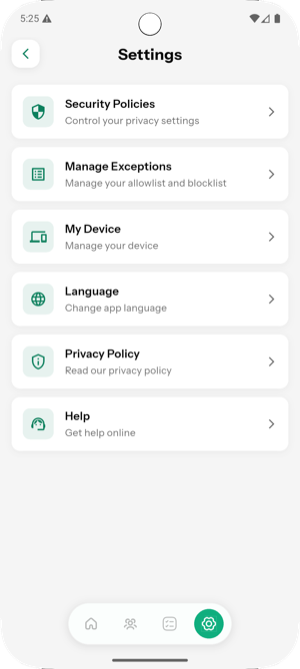
Access the Settings menu (fourth icon) on the bottom navigation bar to configure the app.
Security Policies#
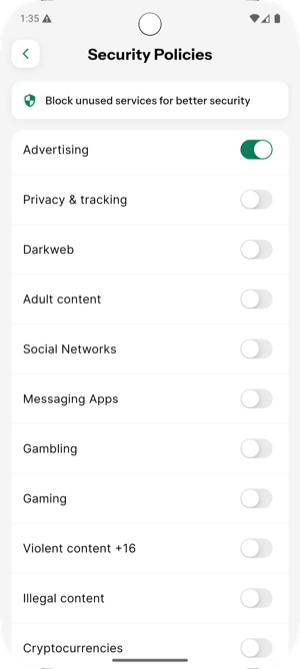
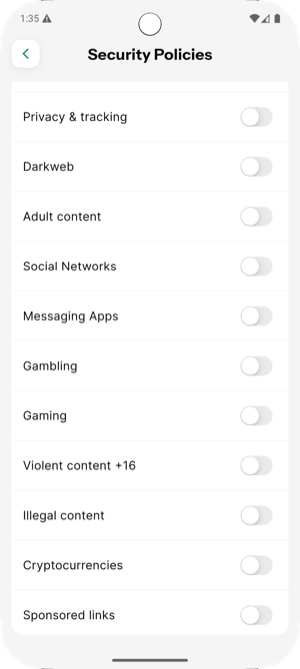
Customize which security filters are active. You can toggle specific policies on or off according to your needs.
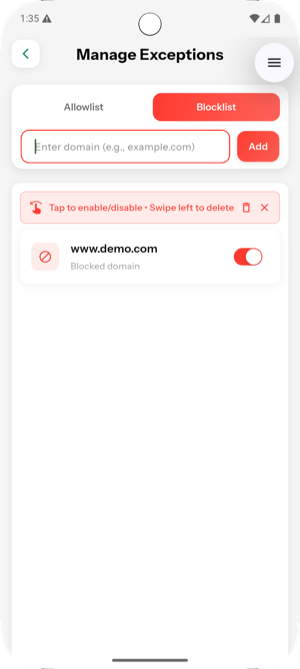
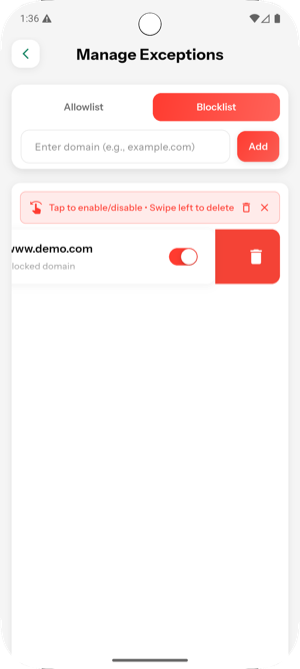
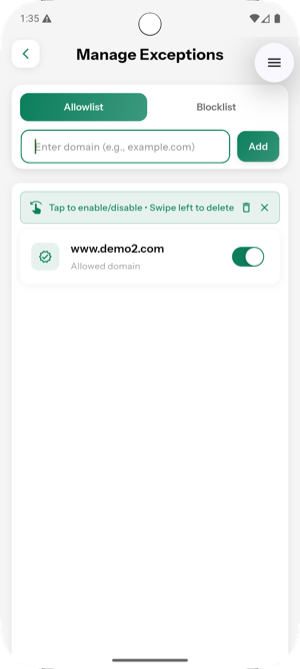
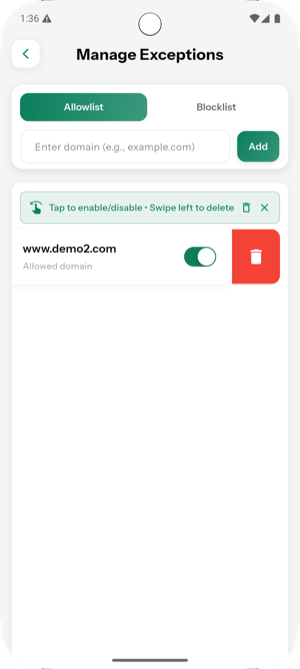
Manage Exceptions#
Control your Allowlist and Blocklist.
- Blocklist: View and manage blocked domains. Swipe left to delete an entry.
- Allowlist: View and manage allowed domains. Swipe left to delete an entry.
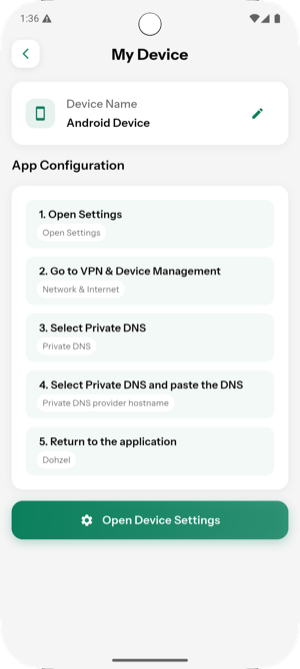
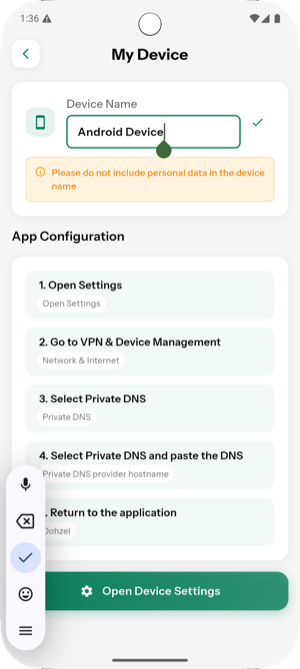
My Device#
View and edit your device information.
Language#
Change the app's language.
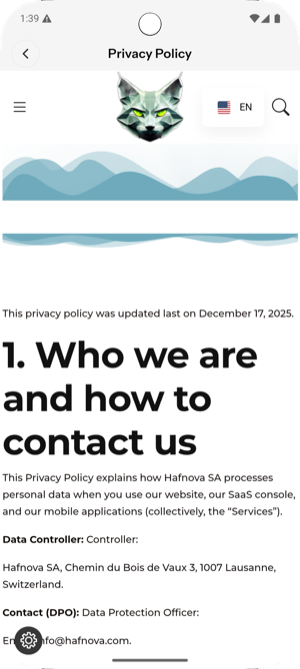
Privacy Policy#
Read our privacy policy to understand how we handle your data.
Help#
Access support resources and documentation.