DoHzel Connect#
1. Introduction#
1.1 Purpose of DoHzel Connect#
DoHzel Connect is a key feature of DoHzel that allows the interconnection of internal corporate DNS domains with DoHzel satellites (mobile and remote devices). It ensures that users of a given profile can resolve internal domain names, even when they are outside the corporate network or in complex environments where multiple DNS systems coexist.
In practice, DoHzel Connect solves the following goals:
-
From internal networks Use conditional forwarding on DoHzel Proxy to resolve internal domains through the local DNS infrastructure.
-
From external networks (remote / mobile users) Use DoHzel Connect to complement conditional forwarding and allow mobile devices (smartphones, laptops, tablets using DoHzel Mobile or DoHzel agents) to resolve internal resources wherever they are.
DoHzel Connect therefore allows mobile users to access internal resources whether they are in the office (on-site) or off-site (via VPN, home network, public Wi-Fi, etc.).
Note – Fixed systems in internal networks For servers, workstations and other fixed systems inside the corporate network, standard conditional forwarding on DoHzel Proxy is generally sufficient. DoHzel Connect specifically targets mobile / roaming devices.
1.2 Typical Target Organizations#
DoHzel Connect is designed for organizations that:
- Have internal networks with one or several local DNS domains (e.g.
corp.local,intranet.company.ch,*.domain1.ch). - Use DoHzel Proxy inside their network.
- Often use a VPN service for remote access to corporate networks.
- Want to avoid conflicts between DNS provided by the VPN and DoHzel DNS servers, while still benefiting from DoHzel protection and internal name resolution.
2. Problem Solved#
A frequent issue occurs when a user, for instance on DoHzel Mobile, tries to reach a local domain only available through a VPN:
- The user connects to the VPN.
- However, the device is still using DoHzel DNS servers for name resolution.
- As a result, the internal domain cannot be resolved, or the request is sent to the wrong DNS server.
Without DoHzel Connect, internal DNS names may be unreachable, even when the VPN connection is active, because DoHzel’s resolvers typically take precedence over the VPN-provided ones.
DoHzel Connect solves this by seamlessly integrating both systems:
- Requests for selected internal domains are routed through a DoHzel Proxy that has access to the corporate DNS.
- Other requests continue to benefit from DoHzel DNS protection and filtering.
- VPN and DoHzel DNS can co-exist without conflict.
3. Architecture#
3.1 High-Level Concept#
The concept is straightforward:
- A DoHzel Proxy instance is deployed inside the network where the internal domain is reachable.
- This proxy is linked to a DoHzel profile and the DoHzel Connect feature is activated.
- Rules in the DoHzel SaaS Console define which domains should be forwarded to which DoHzel Proxy.
-
Satellites (DoHzel-protected devices) using that profile send DNS queries to DoHzel:
-
Queries matching a Connect rule are forwarded to the associated DoHzel Proxy.
- The proxy resolves them using the corporate DNS.
- The result is returned to the satellite through DoHzel.
Multiple proxies can be linked to the same profile, allowing fine-grained routing based on domain names, regular expressions, or geography.
3.2 Component Overview#
-
DoHzel Satellite / Agent / Mobile app Client component installed on endpoints; sends DNS queries to DoHzel.
-
DoHzel DNS Security (Cloud) Central DNS security platform applying filtering, policies, and routing logic including DoHzel Connect rules.
-
DoHzel Proxy (on-premise / internal) Deployed inside the corporate network. It:
-
Maintains a secure tunnel to DoHzel Cloud.
- Resolves internal domains using local DNS.
-
Optionally performs conditional forwarding for local fixed devices.
-
Corporate DNS Servers Existing internal DNS infrastructure, often integrated with Active Directory or another directory service.
4. Features#
4.1 Internal DNS Access for Remote Devices#
- Allows mobile and remote devices to resolve corporate internal domains.
- Works transparently: users use their applications as usual; the DNS routing is handled by DoHzel.
4.2 Coexistence with VPN#
- Avoids conflicts between VPN-provided DNS and DoHzel DNS.
- Supports split-tunnel or full-tunnel VPN models.
- Ensures internal names resolve correctly while maintaining DoHzel filtering for the rest of the traffic.
4.3 Flexible Routing Rules#
Within the DoHzel Console, DoHzel Connect provides:
-
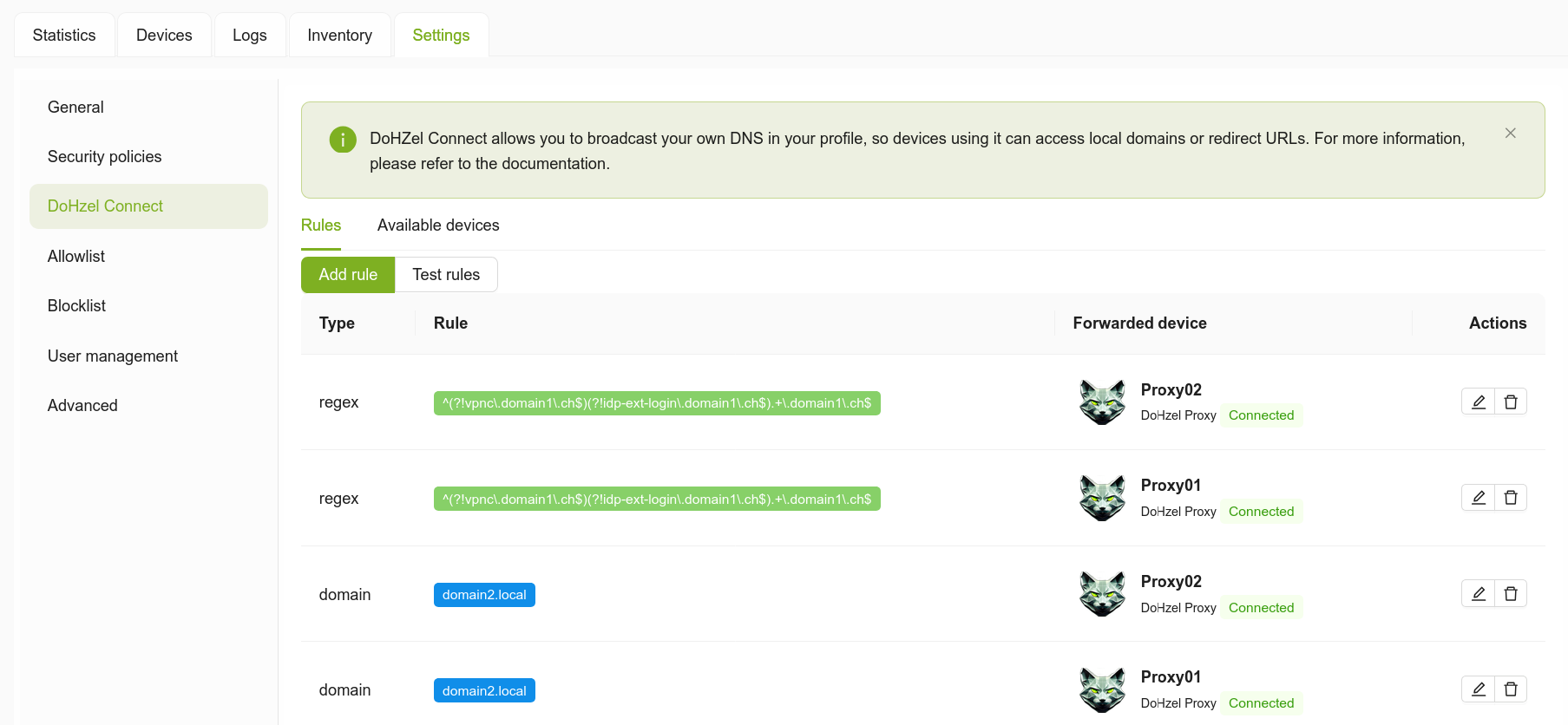
Domain rules Simple rules based on explicit domain names or suffixes (e.g.
domain2.local). -
Regex rules Advanced rules using regular expressions for complex patterns, such as:
-
Matching all hosts under
*.domain1.ch - Excluding specific hosts from the rule
Example (from the screenshot):
^(?!vpnc\.domain1\.ch$)(?!idp-ext-login\.domain1\.ch$).+\.domain1\.ch$
Each rule is associated with a Forwarded device (a DoHzel Proxy instance).
 {width=800}
4.4 Rule configuration modes#
DoHzel Connect allows you to define routing rules in two ways:
By local domain: for simple cases where you want to redirect all queries for a specific internal domain or zone (for example: domain2.local, intranet.domain1.ch).
By regular expression (regex): for more advanced use cases, when you want to cover multiple hostnames with a single pattern, or exclude specific values (for example: route all hosts *.domain1.ch except vpnc.domain1.ch and idp-ext-login.domain1.ch). JavaScript regex flavor must be used.
Using regex provides great flexibility but requires a good understanding of the syntax. If you are unsure, it is recommended to practise and test your patterns with a specialised tool such as: https://regex101.com
4.5 Multiple Proxies per Profile#
- Several DoHzel Proxy instances can be linked to the same profile.
-
Rules can direct different domains to different proxies:
-
Segment per site or datacenter.
- Segment per business unit or environment (e.g.
dev.company.local,prod.company.local).
4.6 A Single Profile per Proxy#
A proxy cannot be linked to more than one profile. DoHzel Connect is defined at profile level. At least one proxy per profile where Connect is needed must be active.
4.7 Rule Testing#
-
A Test rules function allows administrators to:
-
Enter a test domain.
- See which rule would match and which proxy would be used.
- Validate configuration before exposing it to users.
5. Prerequisites#
Before configuring DoHzel Connect, ensure the following:
-
DoHzel Cloud Account & Profile
-
You have access to the DoHzel SaaS Console.
-
At least one profile is created (which will be assigned to users/devices).
-
DoHzel Proxy Deployment
-
A DoHzel Proxy instance is deployed in the internal network where the internal domains are accessible.
- The proxy can reach your corporate DNS or act as a DNS forwarder to it.
-
The proxy is registered and connected to DoHzel Cloud.
-
Software Version
-
DoHzel Proxy version supports DoHzel Connect (2.3.0 or later, according to your internal versioning).
-
Network Connectivity
-
DoHzel Proxy can establish outbound connectivity to DoHzel Cloud (as per your standard proxy deployment requirements).
-
The proxy can resolve the internal domains via internal DNS.
-
Users / Devices
-
End users have DoHzel Mobile, DoHzel Client, or other satellites configured to use the relevant profile.
6. Step-by-Step Setup#
6.1 Step 1 – Deploy and Register DoHzel Proxy#
-
Install DoHzel Proxy according to your standard deployment guide.
-
Ensure the proxy can query your internal DNS servers (e.g. AD DNS).
-
From the proxy host, enable DoHzel Connect:
dohzel-proxy connect set on
To disable it later:
dohzel-proxy connect set off
Check the current state with dohzel-proxy status or dohzel-proxy connect --help.
-
Register the proxy with your DoHzel tenant (activation procedure as per general proxy documentation).
-
In the DoHzel Console, verify that the proxy appears in the inventory and shows a Connected status.
6.2 Step 2 – Link Proxy to the Target Profile#
- In the DoHzel Console, open the profile to which your users will be assigned.
- Ensure that this profile is allowed to use the proxy instance (depending on your tenant configuration, this may be done automatically when the proxy is registered, or via a profile-to-proxy mapping page).
- Confirm that the proxy is visible under Settings > DoHzel Connect > Available devices (see Step 3 below).
6.3 Step 3 – Activate DoHzel Connect in the Console#
From the screenshot and existing text:
-
Log in to your DoHzel Console and open the relevant profile dashboard.
-
Navigate to:
Settings → DoHzel Connect → Available devices
-
Check that:
-
Your DoHzel Proxy instance appears in the list.
-
Its status is Connected or Activated.
-
If required by your version, enable a toggle or checkbox to activate DoHzel Connect for that device/profile.
Once the proxy is visible as an available device, you can define routing rules.
6.4 Step 4 – Configure Rules in the SaaS Console#
- Still within the profile, go to:
Settings → DoHzel Connect → Rules
-
The Rules tab displays existing rules in a table with columns:
-
Type (e.g.
domainorregex) - Rule (the domain or regex pattern)
- Forwarded device (e.g.
Proxy01,Proxy02, statusConnected) -
Actions (edit / delete icons)
-
Click Add rule to create a new rule.
When adding a rule, you must first choose the rule type:
Type: domain → a rule based on an explicit domain name (or zone).
Type: regex → a rule based on a regular expression, allowing complex patterns (including exclusions, prefixes/suffixes, multiple domains, etc.).
For administrators who are less familiar with regular expressions, it is recommended to start with domain rules. Regex-based rules should be carefully tested, for example with the online tool regex101, and then validated using the Test rules tab in the DoHzel console.
6.4.1 Creating a Domain Rule (Simple Case)#
Use this when you have a straightforward internal domain or zone.
- Click Add rule.
- Select Type: domain.
-
In Rule, enter the internal domain or zone, for example:
-
domain2.local intranet.domain1.ch- In Forwarded device, select the DoHzel Proxy that can resolve this domain (e.g.
Proxy01). - Save the rule.
All DNS queries from profile users matching this domain or its subdomains will now be sent to the selected proxy.
6.4.2 Creating a Regex Rule (Advanced Case)#
Use this when you need more complex patterns, such as:
- Matching all hosts under a given domain.
- Excluding specific hostnames.
-
Handling multiple zones with a single rule.
-
Click Add rule.
-
Select Type: regex.
-
In Rule, enter your regular expression. Examples:
-
Match any subdomain of
domain1.ch:^.+\.domain1\.ch$ -
Match any subdomain of
domain1.chexceptvpnc.domain1.chandidp-ext-login.domain1.ch:^(?!vpnc\.domain1\.ch$)(?!idp-ext-login\.domain1\.ch$).+\.domain1\.ch$ -
In Forwarded device, select the DoHzel Proxy that should handle those queries (e.g.
Proxy02). -
Save the rule.
Best practice Start with simple domain rules wherever possible. Use regex rules only when necessary, and document them carefully to avoid unexpected matches.
6.4.3 Rule Order and Precedence#
Depending on your implementation:
- Rules are typically evaluated from top to bottom or according to a defined precedence.
- More specific rules (exact domains) should generally be placed above broad patterns.
If your Console allows rule re-ordering, make sure the order reflects your desired precedence.
6.5 Step 5 – Test Rules#
- In Settings → DoHzel Connect → Rules, switch to the Test rules tab.
- Enter a domain name such as
intranet.domain1.ch. -
Run the test:
-
The Console shows which rule would match.
- It indicates the Forwarded device that would be used.
- Adjust rules, patterns or order if the result does not match your expectations.
6.6 Step 6 – Assign Users / Devices to the Profile#
- Ensure that the target users (or device groups) are assigned to the profile where DoHzel Connect is configured.
-
On their devices:
-
Verify that the DoHzel app or agent is active.
- Confirm that the correct profile is used (depending on your management system, MDM, or enrollment).
Once this is done, the configuration is live:
- Queries for domains matching your rules are forwarded to the internal proxy.
- Other queries are handled by DoHzel DNS Security as usual.
7. Usage Examples#
7.1 Basic Internal Domain Access#
With DoHzel Connect enabled and a rule such as domain2.local → Proxy01:
- A user on DoHzel Mobile, connected from home, types
\\fileserver.domain2.localorhttps://intranet.domain2.local. - The DNS query for
*.domain2.localis forwarded toProxy01. Proxy01resolves it internally and returns the correct IP.- The user can access the internal resource without DNS conflicts.
7.2 Multiple Proxies for Different Domains#
Assume two sites with different internal zones:
*.site1.corp.localreachable viaProxy01*.site2.corp.localreachable viaProxy02
Create two rules:
- Type: domain – Rule:
site1.corp.local– Forwarded device:Proxy01 - Type: domain – Rule:
site2.corp.local– Forwarded device:Proxy02
Remote users in the same profile can now reach resources in both sites transparently.
8. Troubleshooting#
This section lists common symptoms and systematic checks.
8.1 Symptom: Internal Domain Cannot Be Resolved#
Possible causes & checks
-
Rule not matching the domain
-
Use Test rules with the failing domain.
- If no rule matches, add or correct a rule.
- For domain rules, check spelling and suffix (e.g.
domain2.localvsdomain2.local.). -
For regex rules, verify the pattern (escaped dots, anchors
^and$). -
Wrong Forwarded device
-
The selected proxy may not have access to that domain (e.g. wrong site).
-
Edit the rule to point to the correct proxy.
-
Proxy not connected
-
In Available devices, check the status:
- If Disconnected, investigate network or registration issues.
- Restart the proxy service if needed.
- Check local logs on the proxy for connection errors.
-
Internal DNS issue
-
On the proxy host, test DNS resolution manually (e.g.
nslookup intranet.domain2.local <dns_server>). -
If it fails, investigate internal DNS configuration.
-
User not using the correct profile
-
Verify in Console that the device or user is assigned to the profile where DoHzel Connect is configured.
- On the endpoint, check the DoHzel app status and profile assignment.
8.2 Symptom: Domain Resolves, but to a Public or Wrong IP#
-
Rule overshadowed by another rule
-
A broad regex rule might capture the domain and send it to another proxy or to default DoHzel DNS.
-
In the Rules list:
- Check order and patterns.
- Ensure the specific rule is evaluated before generic ones.
-
Internal DNS returns unexpected IP
-
Log into the proxy host and query the corporate DNS directly.
- Correct records in internal DNS if necessary.
8.3 Symptom: VPN Connected but Internal Names Still Fail#
-
Device DNS Path
-
Confirm that DoHzel is still the active DNS resolver on the device (this is expected).
-
DoHzel Connect should then handle internal names; if not, it is likely a rule or proxy issue.
-
Overlapping DNS Configurations
-
Some VPN clients may try to override DNS settings forcefully.
- Make sure your VPN configuration does not block DoHzel traffic or hijack DNS in a way that bypasses DoHzel.
8.4 Symptom: Proxy Not Appearing in “Available devices”#
- Check that the proxy is correctly registered with your tenant.
-
Ensure the proxy is associated with the correct profile / organization:
-
If there is a mapping or scoping mechanism, verify that the profile can use this proxy.
- Verify that the proxy version supports DoHzel Connect.
- Inspect proxy logs for registration or authentication errors.
8.5 Symptom: Rules Page Visible but “Test rules” or Save Fails#
-
Permissions
-
Confirm that your user account has the required rights to edit DoHzel Connect settings.
-
Invalid Regex
-
If a regex is syntactically incorrect, the Console may reject it.
-
Validate your regex with an external tool and retry.
-
Browser Issues
-
Clear cache, try incognito mode, or another browser.
- Check for browser extensions that may interfere with the Console.
9. Best Practices#
-
Start Simple
-
Begin with domain rules for key internal zones.
-
Only introduce regex rules when really needed.
-
Document Rules
-
Maintain internal documentation describing:
- Purpose of each rule.
- Associated proxy and site.
- Owner and change history.
-
Use Test Rules Before Roll-Out
-
Systematically test critical domains before enabling the configuration for a large user base.
-
Monitor Logs
-
Use DoHzel logs and proxy logs to monitor:
- Volume of Connect-routed queries.
- Errors or timeouts when contacting internal DNS.
-
Plan for Redundancy
-
Where possible, deploy at least two DoHzel Proxies per critical site.
- Use multiple rules or automatic failover (if available in your version).
10. Summary#
DoHzel Connect extends DoHzel DNS Security to seamlessly handle internal DNS resolution for mobile and remote users, without sacrificing security or introducing DNS conflicts with VPNs. By combining:
- On-premise DoHzel Proxies,
- Flexible routing rules (domain and regex),
- And SaaS Console management and testing,
organizations can offer a seamless experience to users, who can access internal resources securely from anywhere.