Device management#
Introduction#
For DoHzel, devices can be of two different types: * Managed devices are mostly used when administrators manage fleets of devices, or distinct populations of users, with the same security settings. Users cannot change the settings of their managed device. In this case, security settings are managed and applied using a profile. * Freedom devices: users with a freedom device can manage individually their protection settings, and these settings are not managed by the profile settings. Freedom devices also do not share their allowlist or their blocklist with their profile. Furthermore, Freedom devices can also be integrated in a profile (even with managed devices along), in order to collect usage logs for a consolidation at profile level.
Enroll a new device#
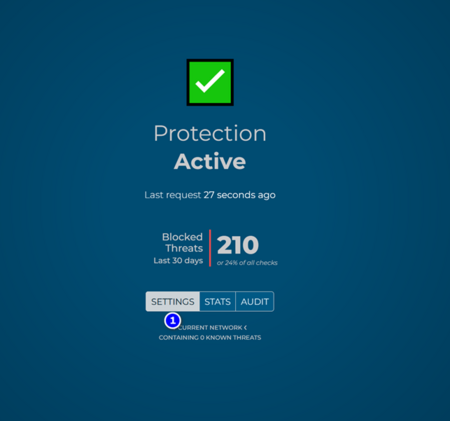
In order to enroll a device into a profile: * On the mobile app: go to settings (1) * On a DoHzel proxy: open the “rebound URL” in a Web browser and go to settings (1)
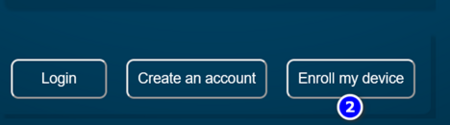
- At the bottom of the settings page, click on “Enroll my device” (2):
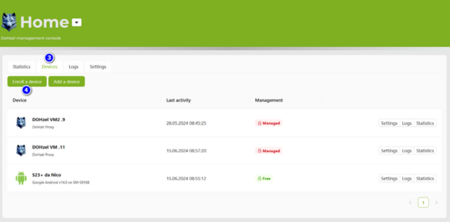
- Go back to the DoHzel console, go to the Devices tab (3) and click on “Enroll a device” (4):
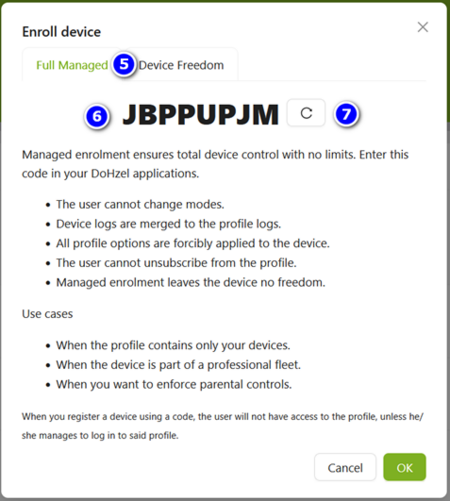
- A window pops up, allowing you to enroll a device either as a managed device or as a freedom device (5). The enrollment process works exactly the same for managed and freedom devices. In this new window:
- The enrollment code (6) is to be introduced into the application to enroll the device.
- If needed, a new enrollment code can be generated using the button (7). Note that the enrollment code is related to the current profile you are enrolling the device into (“Home” profile in this example). So, if you want to enroll a device into a different profile, select first the corresponding profile and do the same procedure.
- Copy the enrollment code (6)
- You can click on “OK” to close this window.
- Back to the application, enter the device name (8) and paste or type the enrollment code (9) and then click on the button “USE” (10):
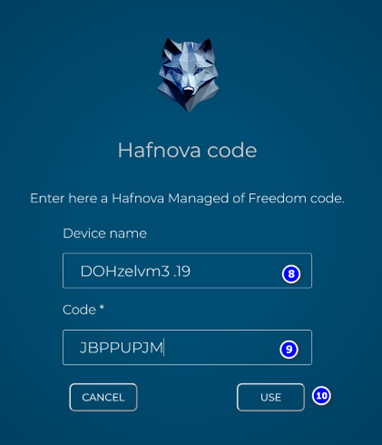 NB: You may have to click several times on this button
- Next screen shows that your device has been recognized. Click on the button “Continue”:
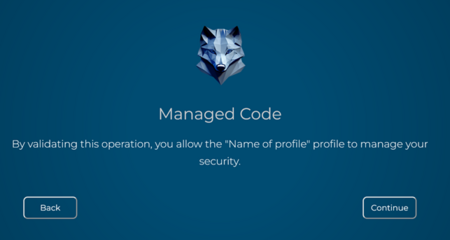 NB: You may have to click several times on this button
- After that, you shall come back to the application main screen.
Back to the console, you shall refresh the page to see the new device:
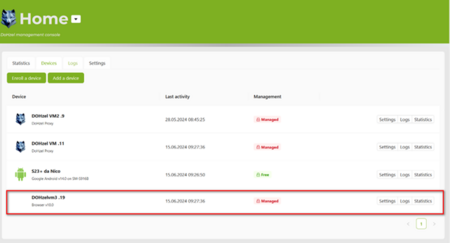
As you can see, the new device is now enrolled and can be managed using the “Home” profile, since it is a managed device.
Hint: At this moment for the first use and since this DoHzel instance has not yet been used to filter traffic, please note that: * The device has no icon; * The device type is temporarily seen as „Web browser“. This case only happens when doing the enrollment of a proxy using a Web browser and the Rebound URL. * This will be corrected once the device is in use.
Domain assessment API#
In SOC/MSSP workflows—or any automation that needs to check a domain against DoHzel policies—you can query the Hafnova domain API using a device token. The token identifies the device; the assessment applies the security policies of the profile that device belongs to.
This is separate from account API keys, which authenticate to the DoHzel console API.
Endpoints#
Two URL forms are supported:
curl -X GET "https://<device-token>.secure.hafnova.com/domain?query=example.com"
curl -X GET "https://secure.hafnova.com/domain/<device-token>?query=example.com"
Replace <device-token> with the token described below and example.com with the domain to assess.
Device token#
The device token is the subdomain in the DNS over HTTPS (DoH) URL shown on the device Settings page (General tab). Open the device in the DoHzel console, go to Settings → General, and read the DoH URL—for example:
https://deviceToken.secure.hafnova.com/dns-query
Here the token is deviceToken (the part before .secure.hafnova.com).
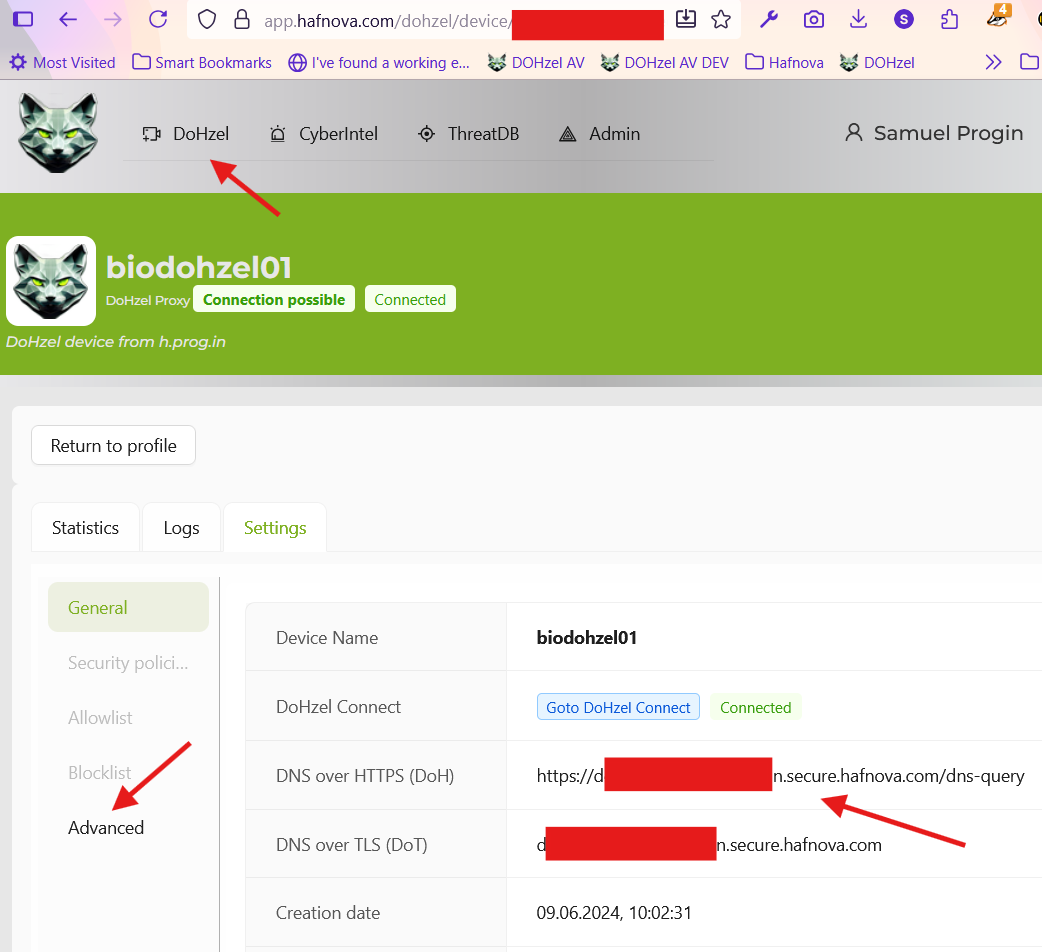
Use an existing enrolled device, or enroll a dedicated device for API-based checks (see Enroll a new device above). Choose the profile whose policies should apply to the assessment.
Response#
The API returns JSON. Pipe the output through jq for readability:
curl -s -X GET "https://<device-token>.secure.hafnova.com/domain?query=example.com" | jq
When the domain is allowed under the device profile policies:
{
  "success": true
}
When the domain is blocked:
{
  "success": false,
  "verify": {
    "decision": "blocked",
    "list": "master",
    "reasons": [
      "security"
    ]
  }
}
| Field | Description |
|---|---|
success |
true if the domain would be allowed; false if it would be blocked. |
verify.decision |
Filtering outcome (for example blocked). Present only when success is false. |
verify.list |
List or policy source that triggered the decision (will always be master). |
verify.reasons |
One or more reason codes explaining the decision (for example security). |