Introduction to profile management#
Profiles are used to manage groups of devices with common security policies. This is especially important for large populations of users with the same security needs.
E.g. an administrator would like to manage a whole fleet of smartphones or tablets used by mobile workforces with the same security policies, or to manage several corporate sites each with a DoHzel proxy instance, with an homogeneous security level all the time.
Administrators shall previously identify populations of users and their security needs to properly define profiles and manage DoHzel clients in an efficient way.
Profiles are used to enforce security on “managed” devices (see also "Device management").
In the following screenshots, the profile used to manage devices is called “Home” and is dis-played on the green banner aside the DoHzel wolf.
Creating a new profile#
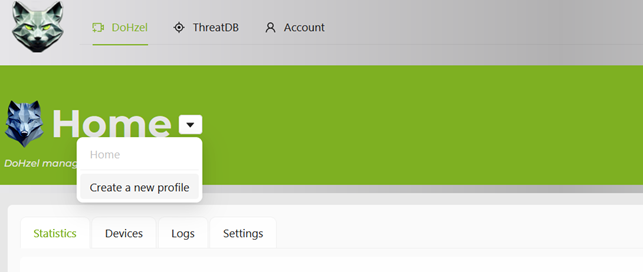
If you want to use profiles to manage fleets of devices, you can create your profiles using the arrow next to the current profile name.
Click on “Create a new profile”:
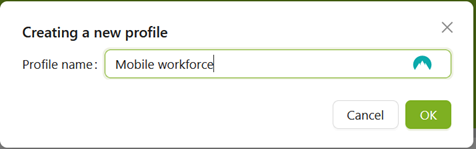
Give it a name, e.g. “Mobile workforce” in following example, and click “OK”:
Once this is done, you come back to the profile’s main page, which is empty since no device has yet been enrolled.
Edit a profile name#
To change a profile’s name, go to: * Settings tab (1) * General tab (2) * Click on Edit (3)
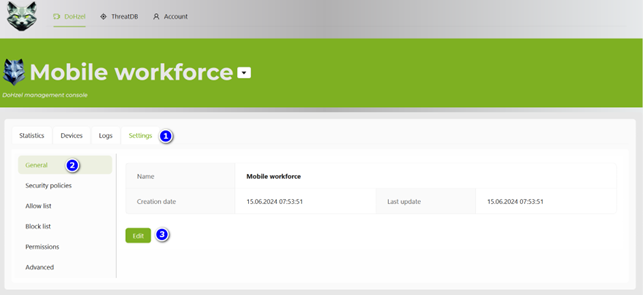
Change the profile’s name and save it.
Profile > statistics#
Profile statistics show the usage of Internet:
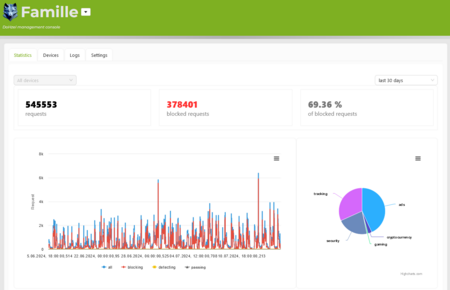
Each graph can be visualized in full screen mode and be exported in various file types.
Profile > devices#
According to our concepts, devices can be either:
- Managed: in that case, security settings of managed devices are managed by a profile and the profile settings of the profile (policies, allowlist and blocklist) are enforced in devices.
- Free: users can manage individually their protection settings on a free device, and these set-tings are not managed by a profile. Free devices can also be managed individually using the DoHzel console.
Profile > Settings#
General tab#
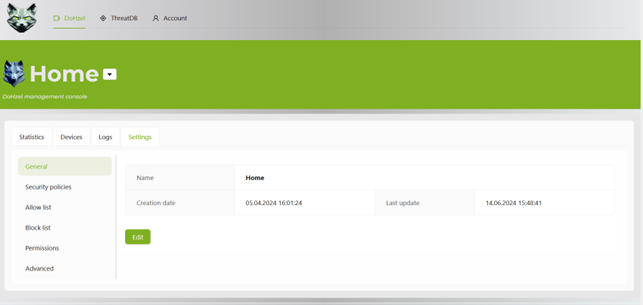
Here you can rename your profile by clicking on the “Edit” button:
Security policies tab#
The security policies page enables administrators to allow or block content or types of traffic to secure your environment.
First, you can change de blocking mode to:
- Blocking mode (log & block): normal operation of DoHzel;
- Detecting only (Log only): in that case, all security features are disabled, but DNS requests are logged;
- Bypassing (no log & no block): in that case, all security features are disabled and DNS requests are not logged.
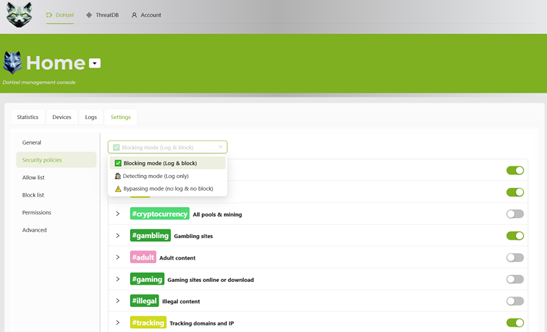
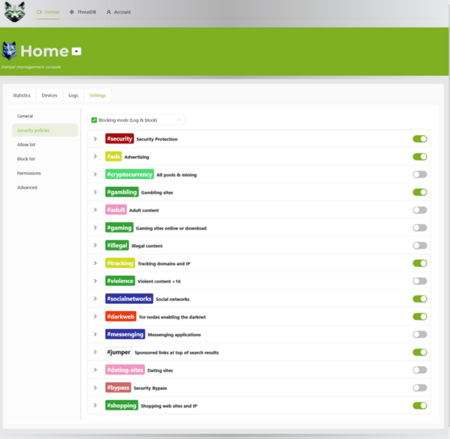
Under the filtering mode you can select the content that is allowed (right marker set on its left side appearing grey) or blocked (right marker set on its right side appearing green):
Allow list tab#
When entries are introduced into the allowlist, all traffic to the concerned domain is allowed. The allowlist rules can be enabled (right button set to the right becomes then green) or disabled (right button is then grey). Allowlist rules can also be removed by clicking on the trash can.
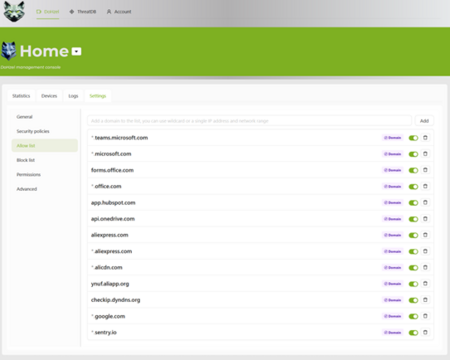
This is especially useful if access to a legitimate site is blocked because of a security policy. Entries into the Allowlist can be added either from this tab, or using the button “Add to allowlist” in the Log management panel.
Block list#
The Blocklist works the same way as the Allowlist.
Unwanted requests can be blocked either directly in this tab, or from the Log management panel.
Permissions#
This section enables sharing access to your profile (user 1) to another user (user 2).
For that, the new user 2 must already be registered and have access to DoHzel Console.
Ask user 2 to provide his Share code, available in the account management page under: "Account" > Preferences > Share code, e.g.:
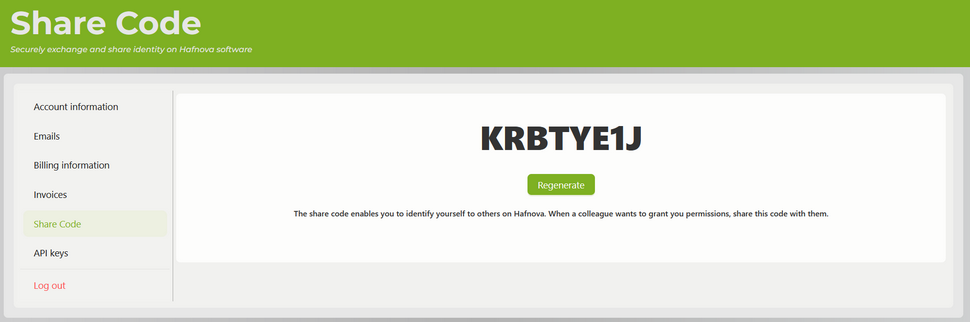
To provide access to this profile to user 2, user 1 has to:
- Go to the profile Settings (1);
- Click on Permissions (2);
- Click on the "Add user" button.
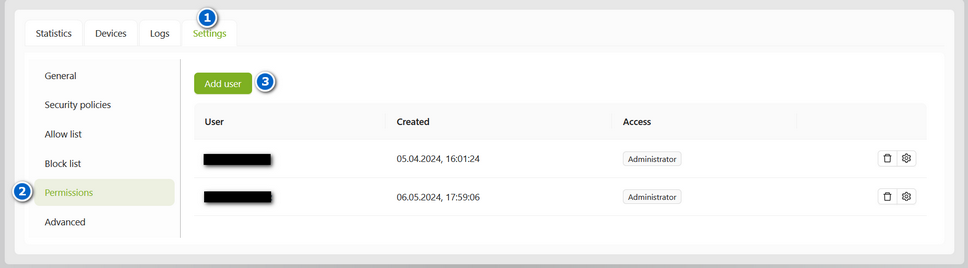
Then, the following window will pop-up:
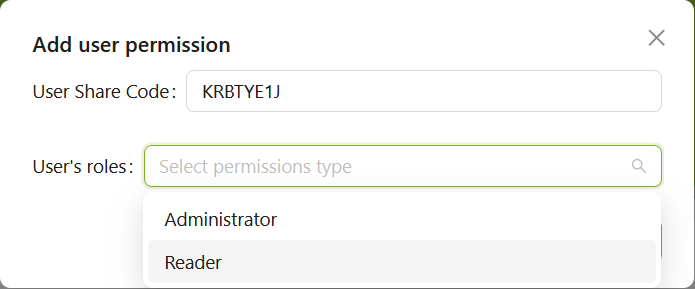
In this window, enter the Share code of user 2 and select his access rights: - Administrator: with full control on the console, including profile management, devices management, etc. - Reader: with read-only access
Click on the "Ok" button to save the changes and finalize providing access to user 2.
Note that for user 2, access to user 1's console is made available in the profile list (see descending arrow next to the profile's name on the main page).
Advanced#
In this section, you can remove the currently selected profile.
Warning: By doing so, please note that all devices belonging to this profile will lost and will have to be enrolled again in another profile.
Hence, if you want to move one or more devices from a profile to another one, please do it prior to removing an existing profile.
Enroll a DoHzel instance in a profile#
For managed devices#
For freedom devices#
Exclude a device from a profile
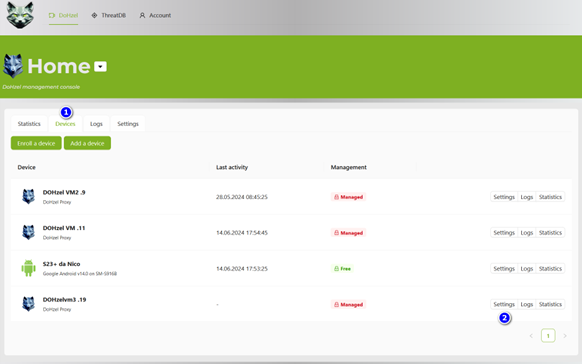
From the main page, go to: * Devices tab (1) * Click on the right device’s settings (2).
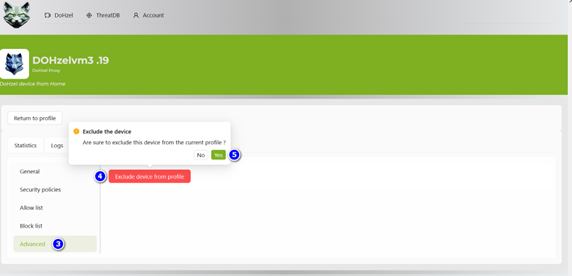
On the new page Devices > Settings > General: * Click on the Advanced tab (3): * Click on the button “Exclude device from profile” (4) * Confirm that you want to exclude the device from the given profile (5)
Change a device from a profile to another profile#
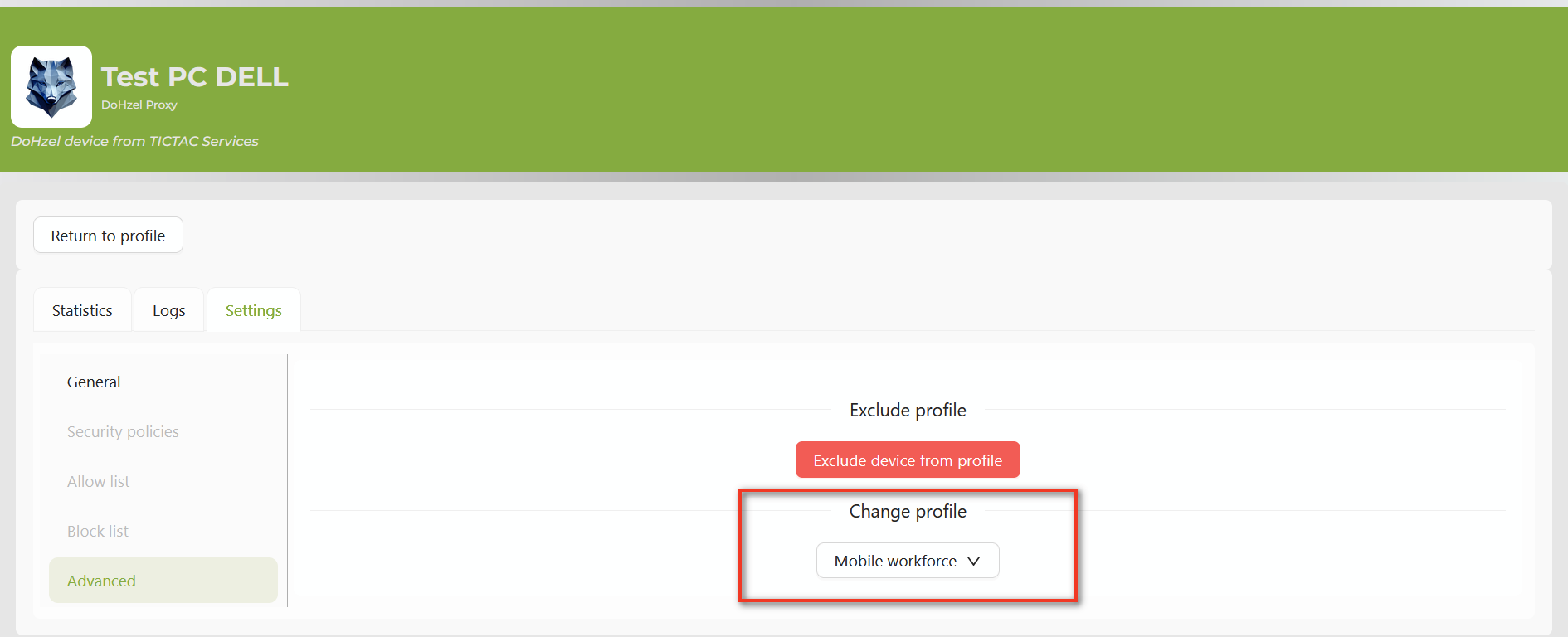
To change a device from a profile to another profile, this can be done in two ways: * For managed devices: On the page Devices > Settings > go to the Advanced tab and select the new profile under section "Change profile":
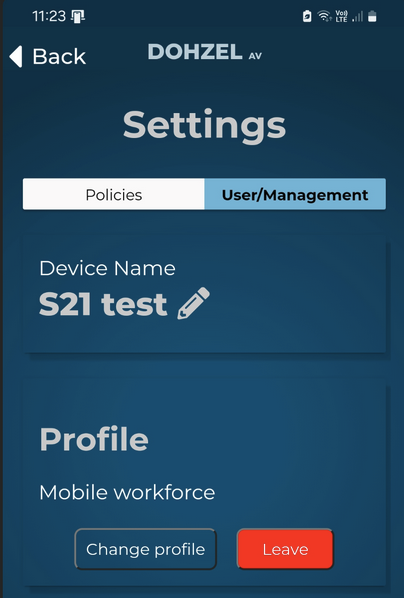
- For freedom devices: this can be done directly in the application under Settings > User management:
- Change profile
- Leave profile