Emails Management#
Introduction#
The Emails Page allows users to manage the email addresses linked to their accounts. Users can add, verify, and remove email addresses efficiently. This section provides an overview of all email-related functionalities available in the system.
1. Emails Section#
This section enables users to manage their registered email addresses. The available features include:
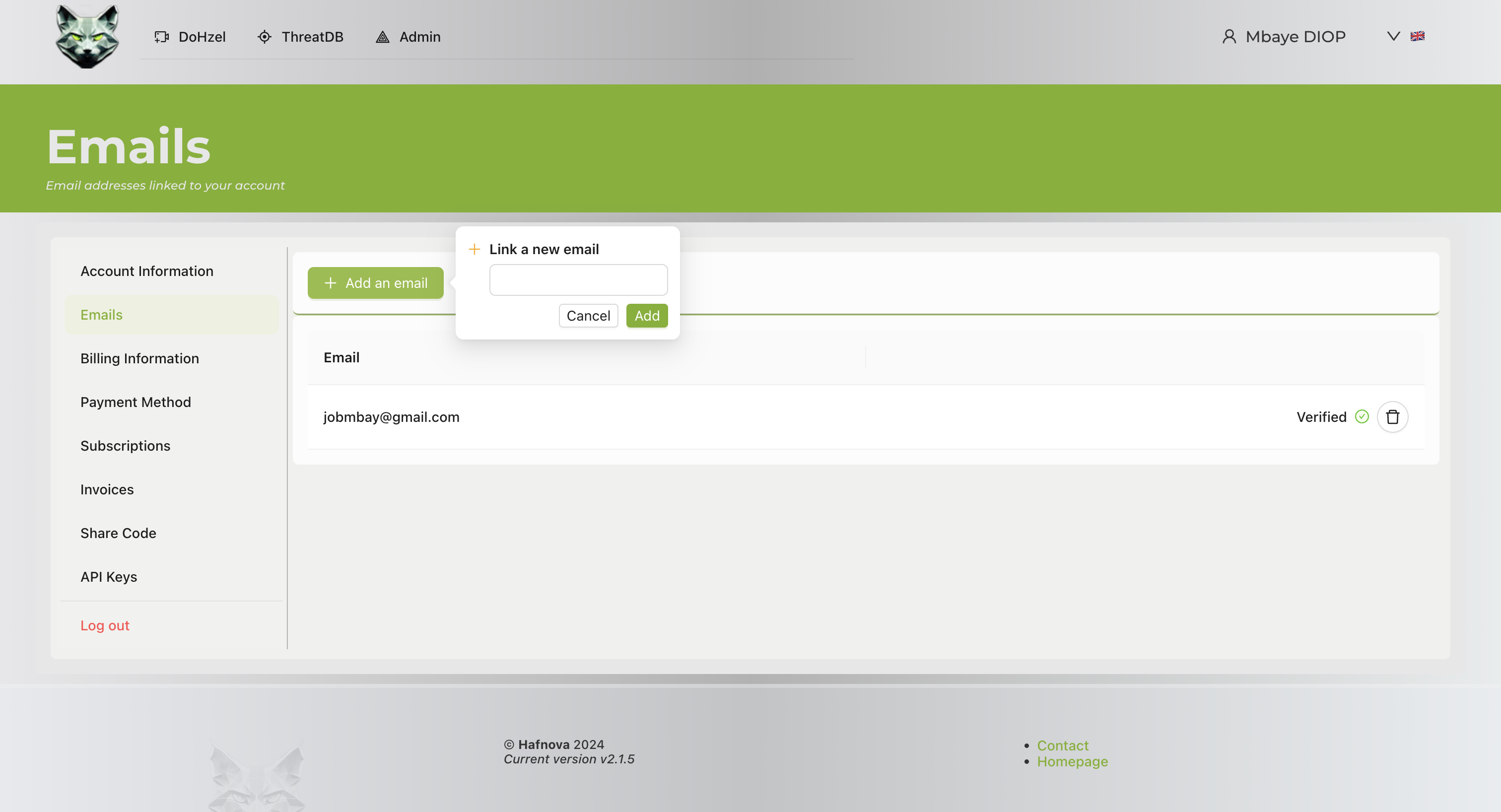
- Add an Email: Allows users to link a new email address to their account.
- Email List: Displays registered emails and their verification statuses.
- Delete Email: Provides an option to remove an email from the system.
- Verification Status: Indicates whether an email is verified.
2. Action Buttons#
The following actions are available for users:
- Add: Confirms and saves a newly entered email.
- Cancel: Closes the add email popup without saving changes.
- Delete: Removes an email from the system (only available for non-primary emails).
User Actions#
Adding a New Email#
- Navigate to the Emails section.
- Click on the Add an email button.
- Enter the new email address in the popup field.
- Click Add to confirm the addition.
Verifying an Email#
- After adding an email, a verification link is sent to the provided address.
- Open the email and click on the verification link.
- Once verified, the status updates to Verified.
Removing an Email#
- Locate the email you wish to remove from the list.
- Click the Delete icon next to the email.
- Confirm the deletion if prompted.
Footer Information#
The footer contains:
- Version Information: Displays the current system version (2.1.5).
- Contact and Homepage Links: Quick access to support and homepage.
Additional Notes#
- Only verified emails can be used for account-related notifications and password recovery.
- Ensure the correct email is added and verified to prevent login issues.
- Deleting the primary email is not allowed unless a new primary email is set first.