Account Invoices Management#
Introduction#
The Invoices Page allows users to view and manage their invoices efficiently. This page provides a comprehensive overview of billing history and facilitates easy access to payment and download options.
1. Invoice Table#
This table displays a list of all user invoices, including:
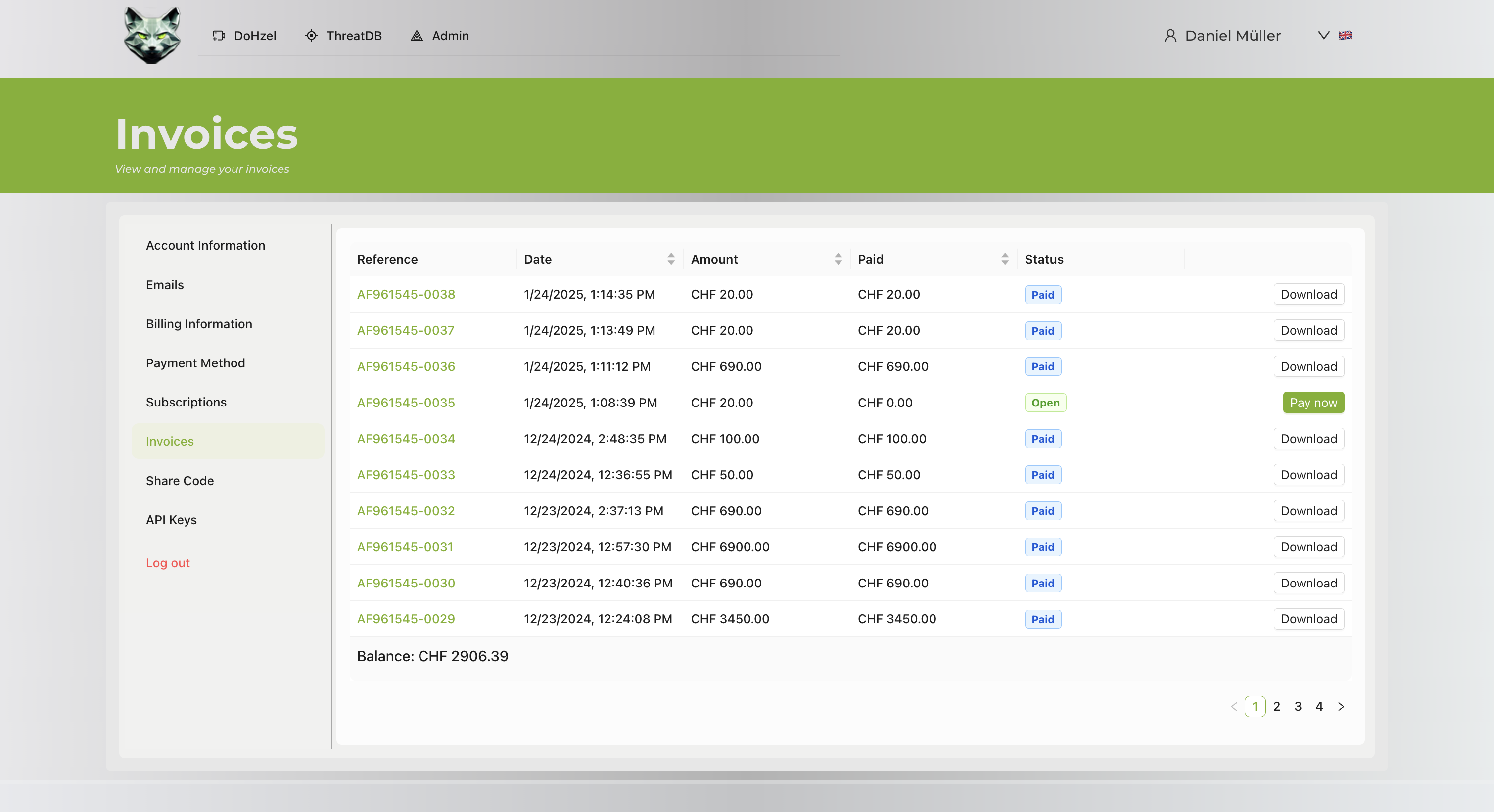
- Reference: Unique identifier for each invoice.
- Date: Date when the invoice was issued.
- Amount: Total amount billed.
- Paid: Indicates whether the invoice has been paid or not.
- Status: Shows the current payment status (e.g., Paid, Open).
- Action: Provides options to download the invoice or make a payment if the invoice is open.
2. Balance Information#
- Displays the user's current balance at the bottom of the invoice table.
User Actions#
Viewing Invoices#
- Navigate to the Invoices Page.
- Review the list of invoices in the table.
- Use the pagination controls at the bottom to navigate through the list.
Downloading Invoices#
- Locate the desired invoice in the table.
- Click the Download button to download a copy of the invoice.
Paying Open Invoices#
- Identify invoices with an Open status.
- Click the Pay now button to initiate payment for the invoice.
Notes#
- Ensure that all open invoices are paid promptly to avoid service interruptions.
- The balance information provides a clear summary of the user's outstanding or available funds.
- Downloading invoices is recommended for record-keeping purposes.